Hexagon Geosystems · 2024-2026
ROLE
Staff Product Designer
TEAM
1 PM, 1 Full-stack engineer, 1 Front-end engineer
STATUS
Native charts in beta; two chart types shipped, full overview in early engineering
IMPACT
Hand-built setup and updates ended for two charts on the projects that adopted them
The Construction Analysis Portal compares what’s actually built (from reality-capture scans) against what was designed (from BIM models). Reporting was the layer Project Owners came back to on every build, and the layer that had received the least design and engineering investment. Charts were Power BI documents in iframes, hand-built by Customer Service at 12 hours per project setup and 4 hours per update. The data froze at the last publish. Report production came back on every project, every time the data moved. That repetition is what made it worth designing away. Project Owners said, unprompted, that getting an answer took too many clicks. Get them straight to the point became the bar every design decision had to clear.
Reaching any chart took three or four clicks minimum, and nothing was linked. Reporting couldn't scale without hiring more people or slowing delivery. I scoped the redesign with my PM, surfaced the billed CS hours we could free up, and sold it to leadership together.
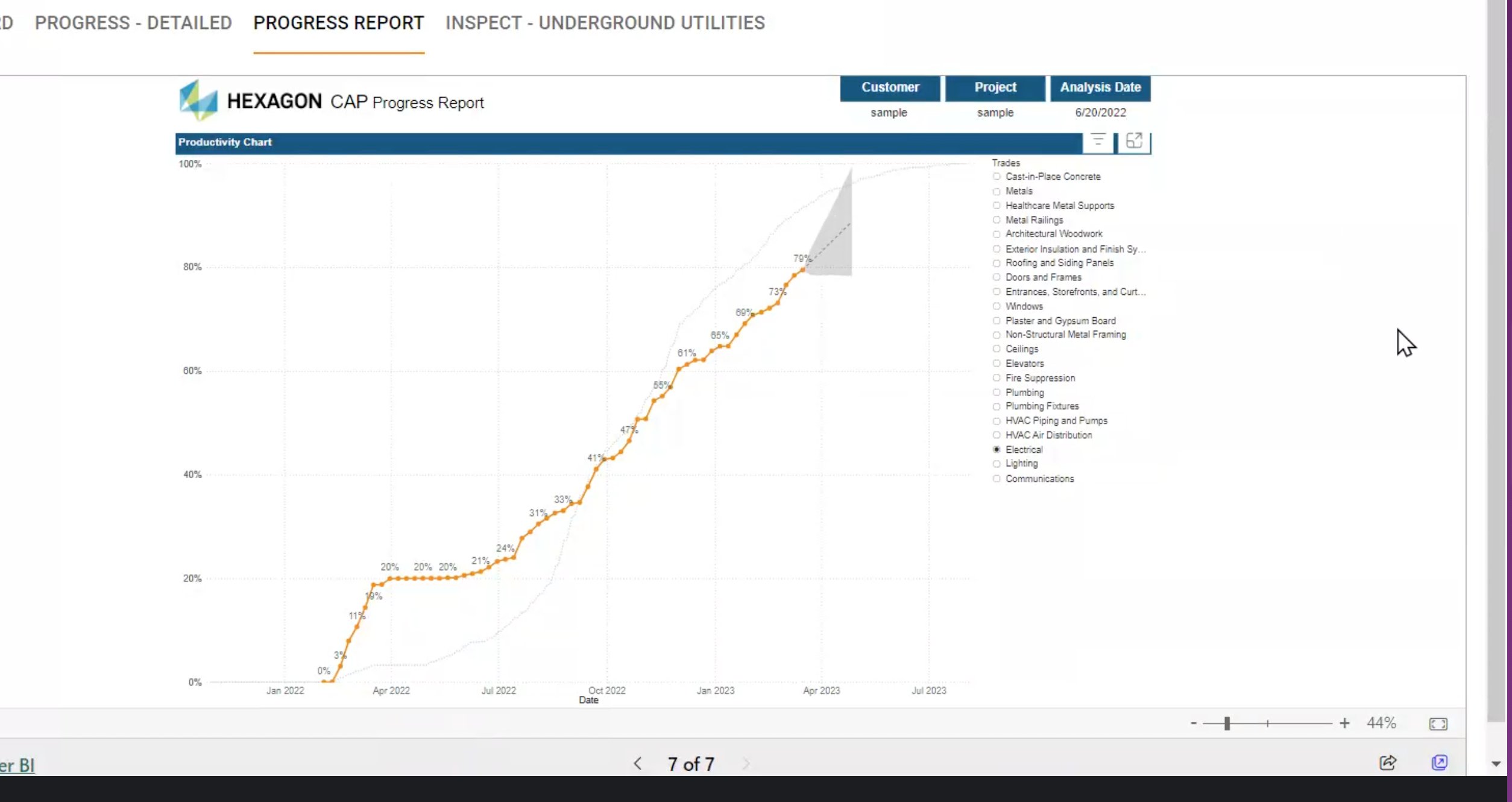
Power BI experience inside CAP. Customer and project redacted.
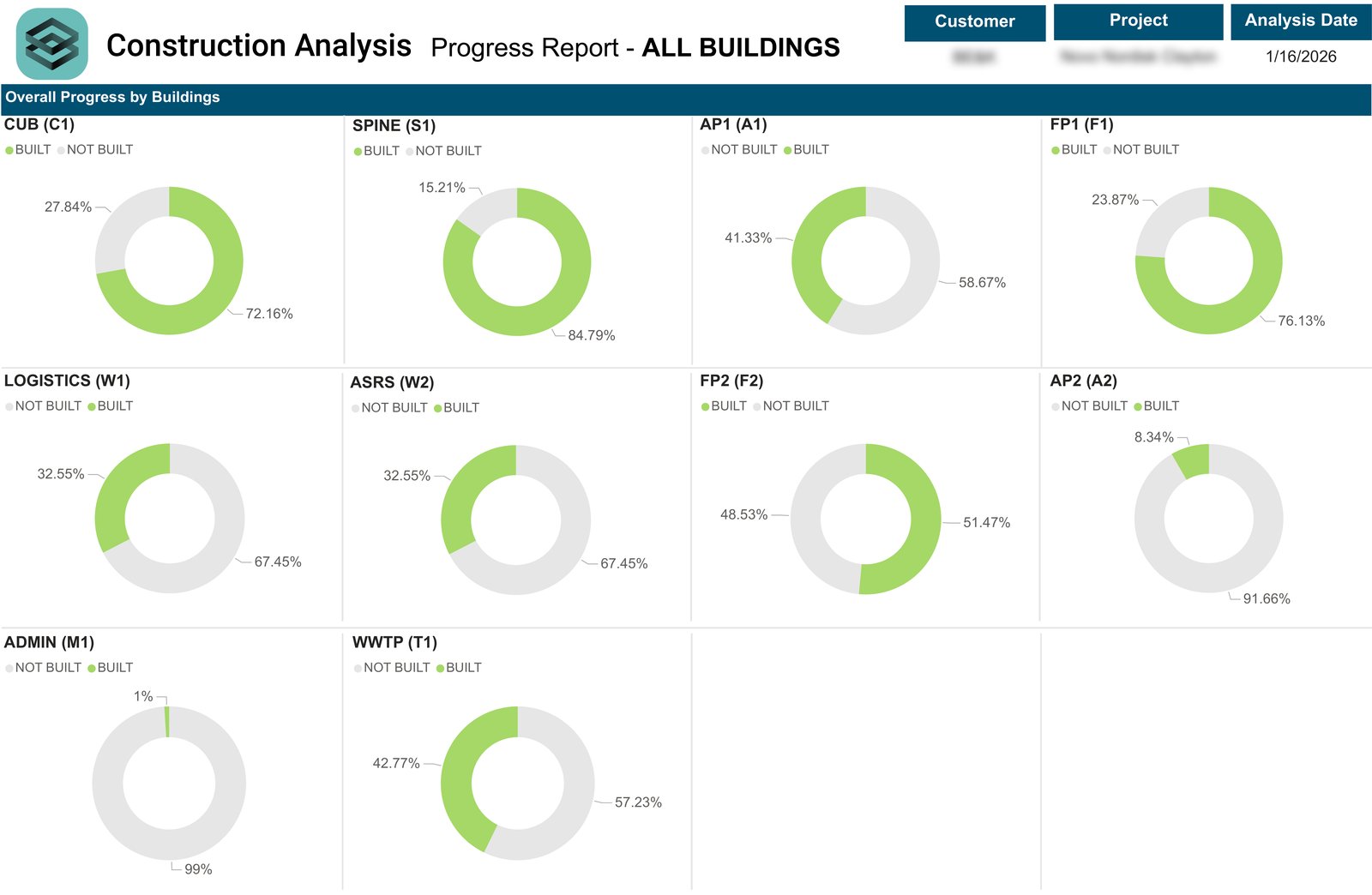
Customer-facing Power BI report: donut grid by building, names redacted.
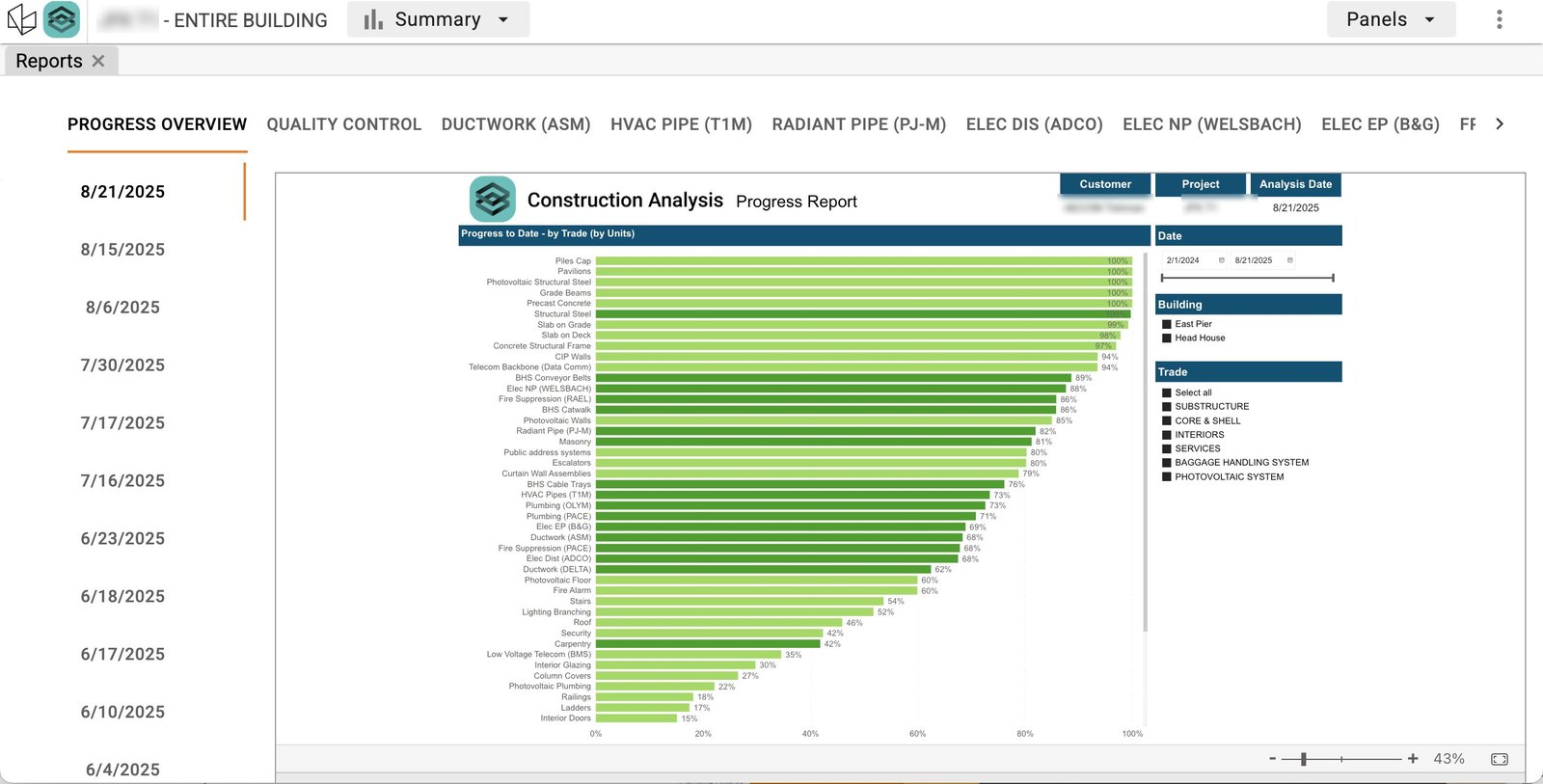
Existing CAP reporting: per-project tabs by report type, trade, deliverable.
I ran interview sessions with Project Owners and planning managers across active projects. They all wanted the same thing: to log in and immediately know what needed their attention.
“How can we get everything into a unified spot? Easier to see in one area instead of searching email for pdfs.”
-My note from a customer listening session
Critical path was the frame customers judged everything else against. One called it the most important part of any progress conversation, and another wanted to see at a glance whether an area was on it. So it constrains every view rather than a tab of its own.
Before designing anything, I mapped every question a user could ask across progress, accuracy, and schedule. The central mismatch surfaced: reporting was organized around chart types, and the questions customers were trying to answer never shaped the structure. A Project Owner asking "is my build on schedule?" had to visit three disconnected parts of the app and assemble the answer themselves. The redesign would invert that.
Customers also print and export reports for offline meetings and trailer walls. The dashboard needed an export path that preserved filter state, and the audience sat at desks; jobsite Wi-Fi wasn't reliable enough to design around.
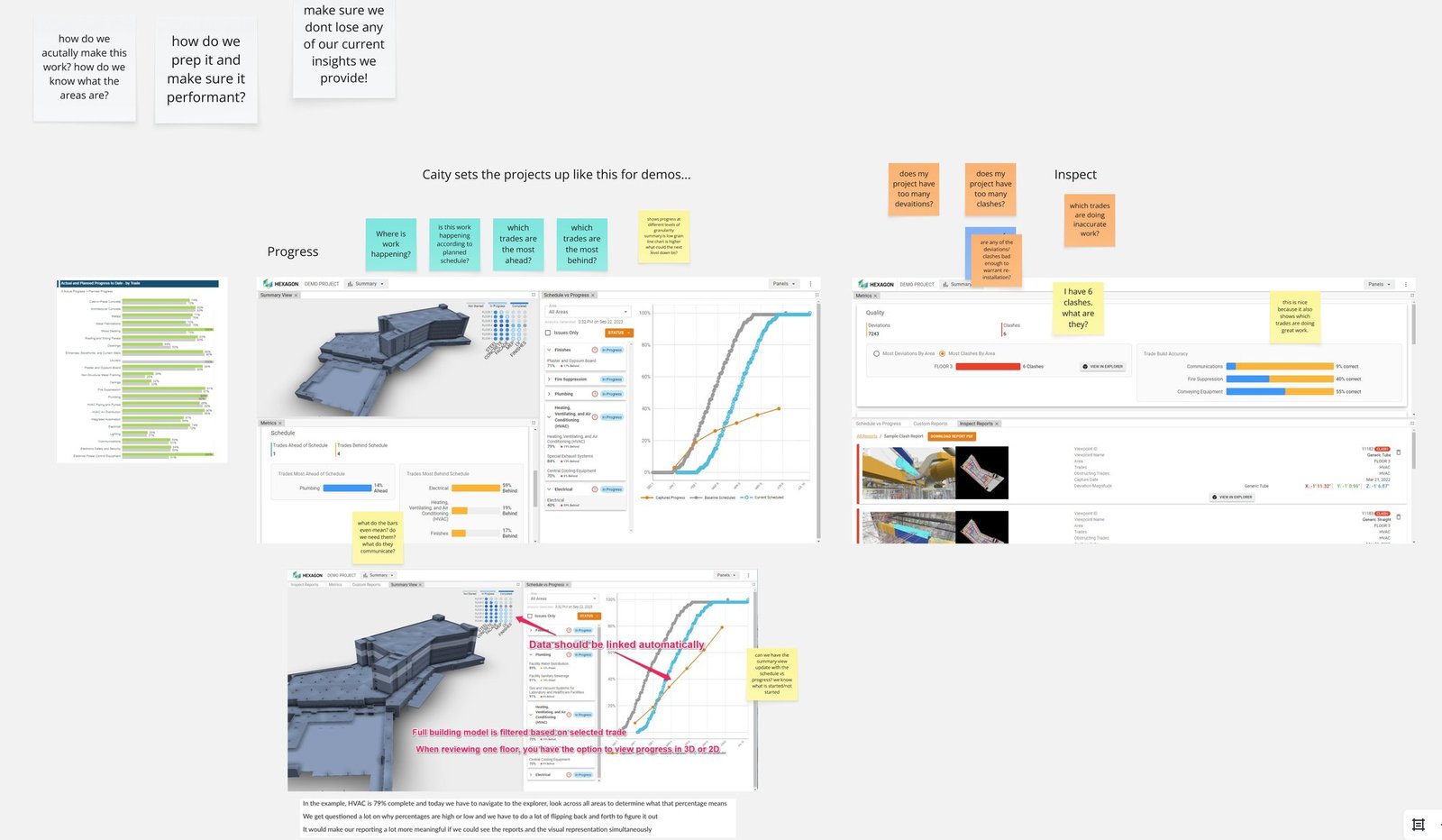
Users were building their own dashboards inside the platform by aligning panels. I marked up one solutions engineer's demo setup and gathered her feedback on what she wished it did.
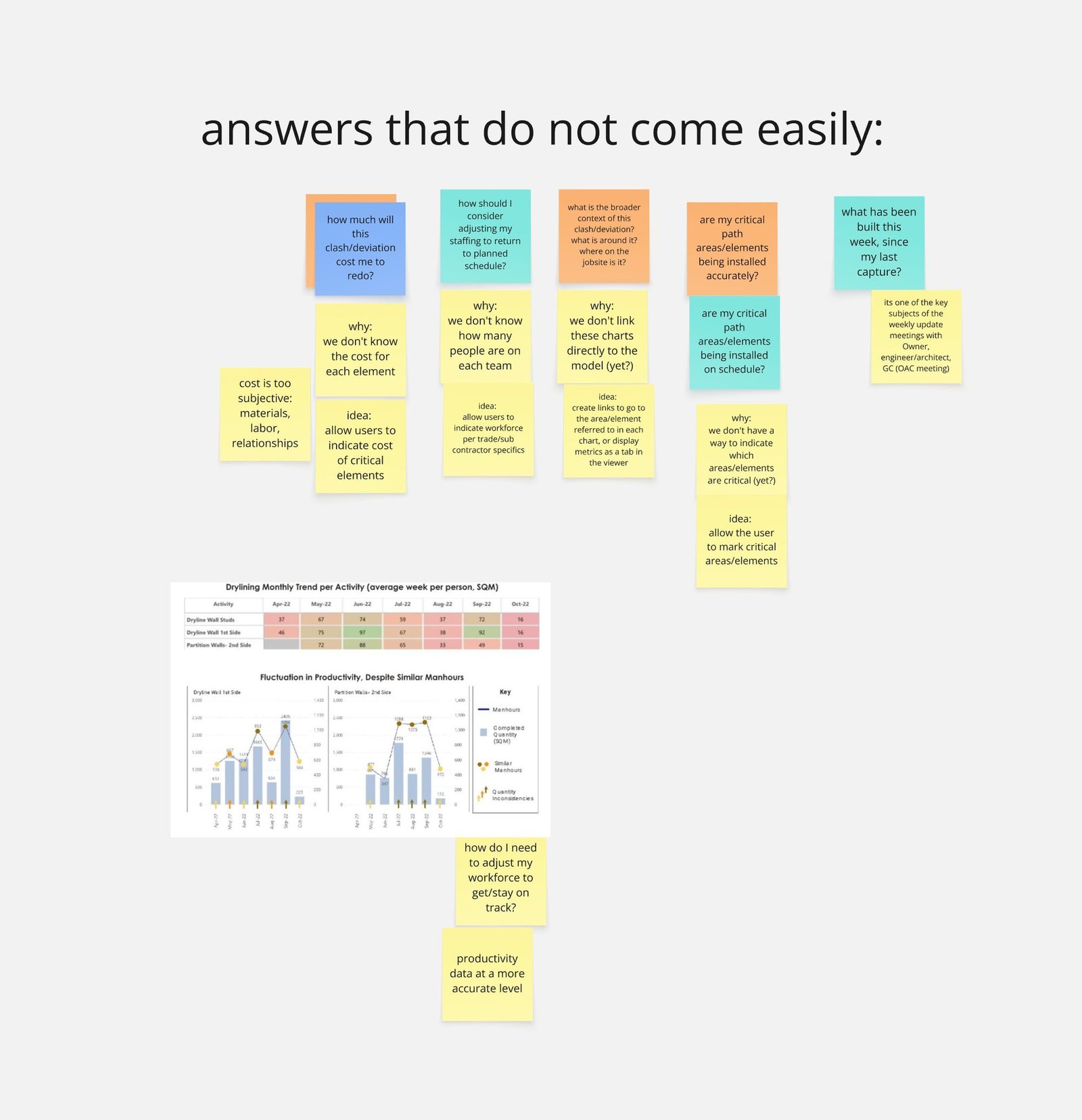
Working through the existing charts, I documented the questions our reporting couldn't answer. Some were solvable inside the current data model. Others needed backend work that wasn't worth the lift.
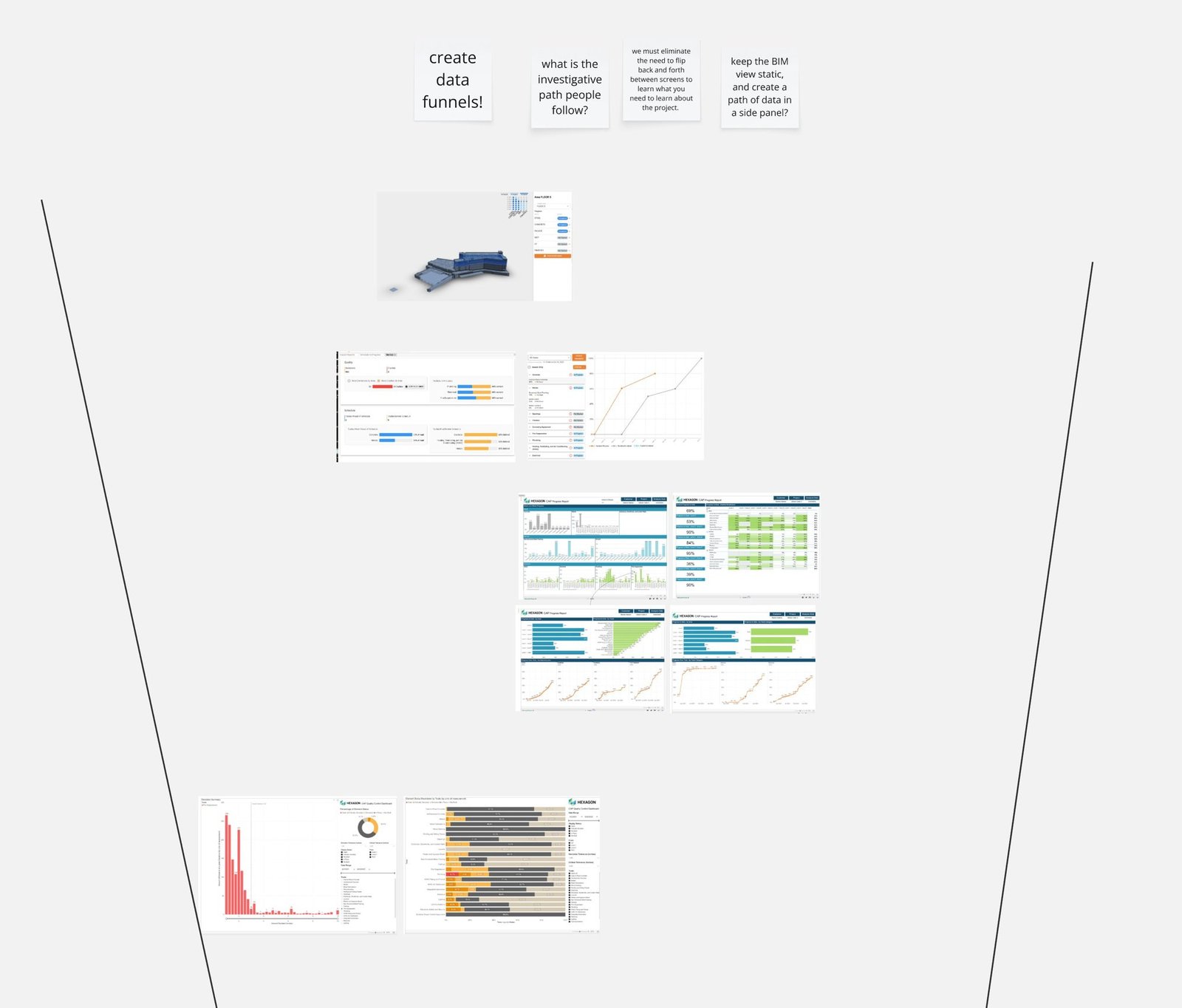
A core goal: design an investigative path that funnels users from broad overview down to fine detail. An intentional journey that lets a Project Owner follow a smell through the full data story instead of flipping between screens.
Progress and accuracy reporting are sold separately. Every place the two could appear together used separate, hideable elements so an accuracy-only customer never saw a module they hadn't bought. Customer Service layered per-project customization on top of every project; whatever I designed had to absorb that into the standard itself.
I aimed to use this as an opportunity to bring our application closer to compliance with our division’s design system, Pangaea. The system lacked many of the patterns I needed for data viz, so I created them and contributed them back to the design system so future similar buildouts could stay consistent. There were also existing artifacts of our legacy system, the MUI framework I built with the other designers at Avvir, still running its orange palette under the existing charts.
I was the only designer, PM coverage shifted, and engineering capacity stayed small. Native charts shipped first; mobile was sketched, validated with SMEs, then descoped.
Chart migration moved standard reporting out of Power BI and into the platform itself, where charts could pull live data and exist for every project without anyone building them by hand. The highest-volume and most-frequent charts shipped first.
Donut charts had been the company's default for years. User testing and data viz best practices flagged the same gaps: donuts didn't carry enough detail at a glance, and didn't scale as severity tiers grew. We moved to stacked horizontal bars.
Progress Matrix answered a Project Owner's first question: how is each trade doing on each floor? The redesigned accuracy charts answered a related one: which trades are off, and how badly? Schedule vs Progress answered which trades are behind plan, and by how much? I rebuilt its layout so per-trade status read across the full trade list at a glance, with the most-behind trades sorted to the top.
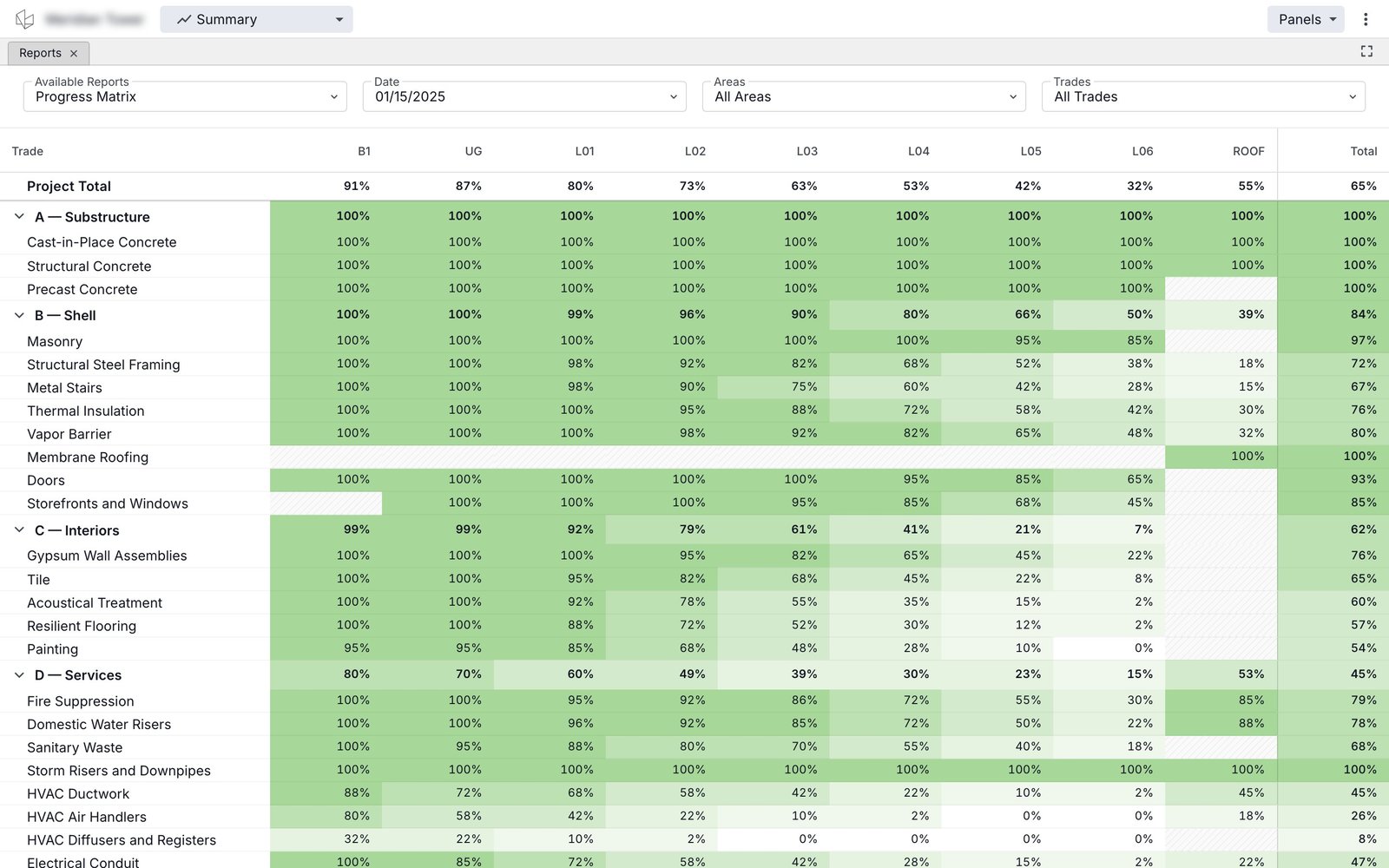
Progress Matrix (MVP): trade-by-floor completion percentages, color-coded for scanning.
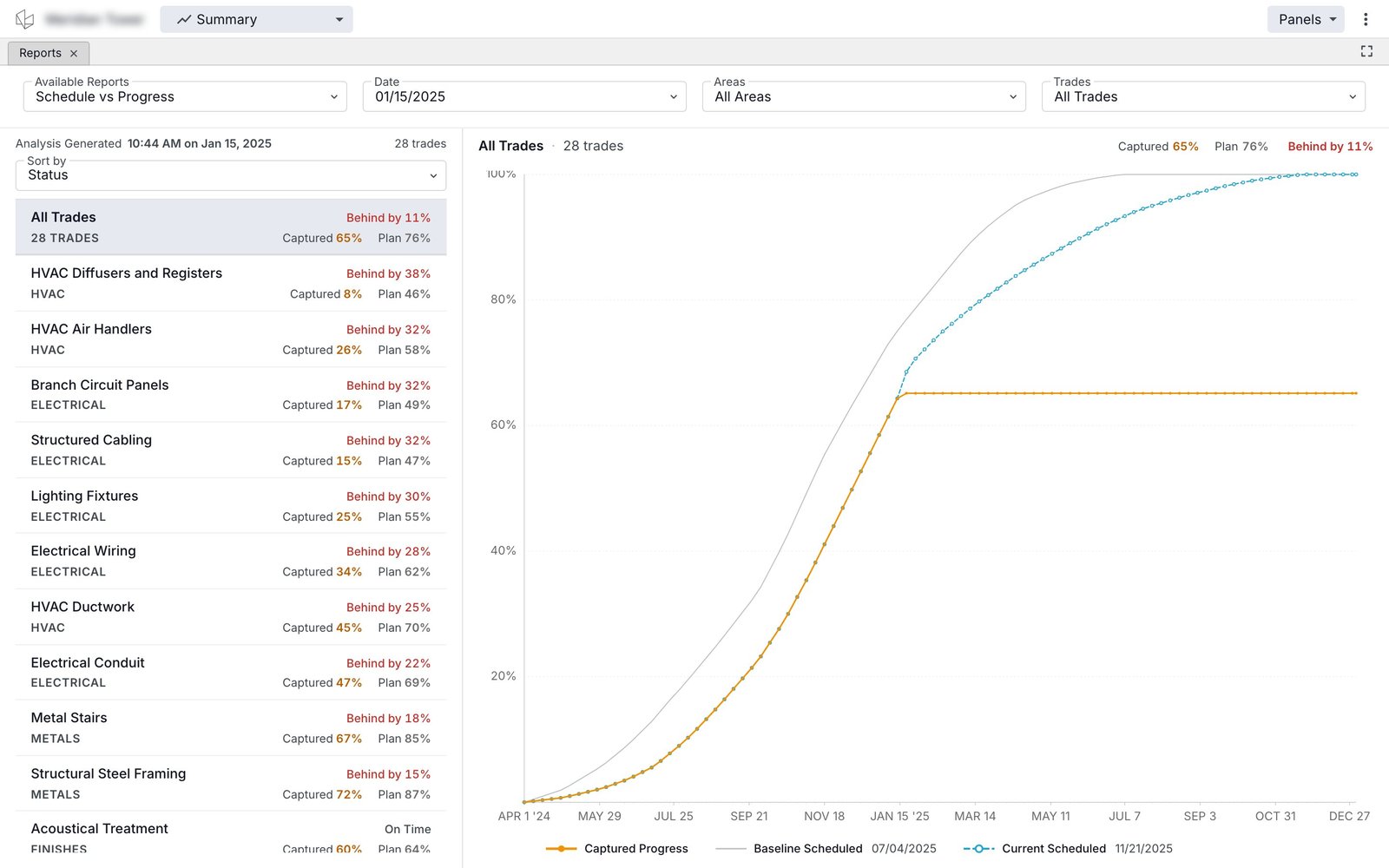
Schedule vs Progress (MVP), All Trades: baseline, current, captured progress.
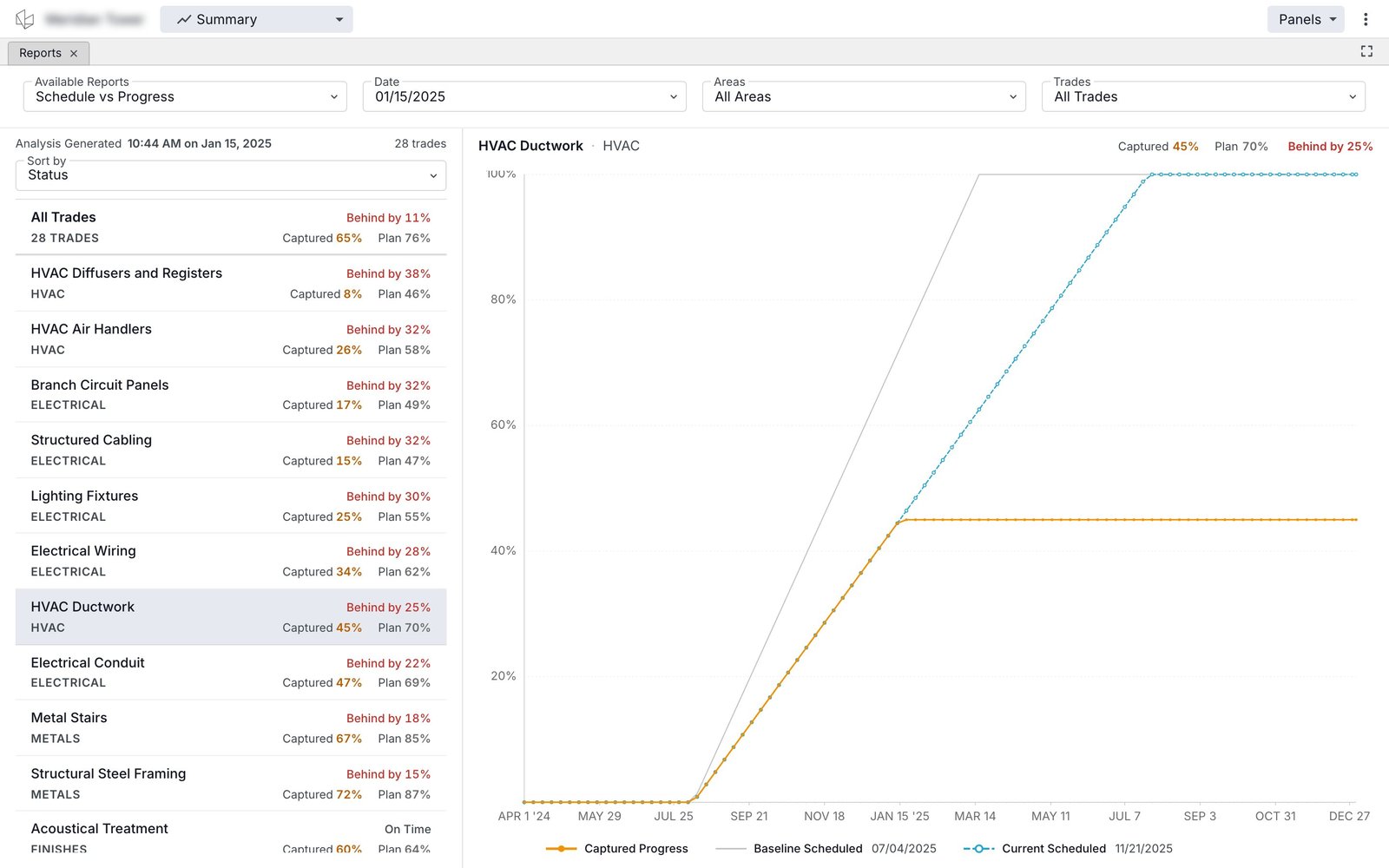
Same chart filtered to HVAC Ductwork, 25% behind plan.
I prototyped every chart component in Recharts using Claude Code, covering both the MVP-ship and scoped dashboard versions. Recharts was the production library, so engineering had a functional reference to match.
Organized around what Project Owners ask first.
With native charts replacing Power BI, the next step was the entry point. The dashboard inverts the old pattern: the questions a Project Owner asks first are answered on login.
Nine views each take one axis of the project. Overview opens the dashboard and answers what needs my attention right now? Two stacked strips sit above seven widgets carrying project state and deltas since the last capture. Each widget is a one-click entry to its full tab.

Overview: two stacked header strips above seven one-click widget entries.
Every tab carries a KPI strip on the same rules (typically 3-6 cells, two-column layout, severity colors only on evaluative tiers). The metric changes per tab, but the rules don't. The Critical Path filter sits cross-cutting and constrains any tab to whatever the customer marked as critical during project setup: a delivery-gated trade like structural steel or fire suppression, an element like an elevator shaft or main electrical riser, or a phase-driving area like the main mechanical room.

KPI strip from the Schedule tab. Same rules govern every tab.
Plan vs Actual answers how is each trade performing against plan, and who's dragging the overall percentage down? Aggregates are element-weighted; a 4,000-element trade carries proportionally more weight than an 80-element one.
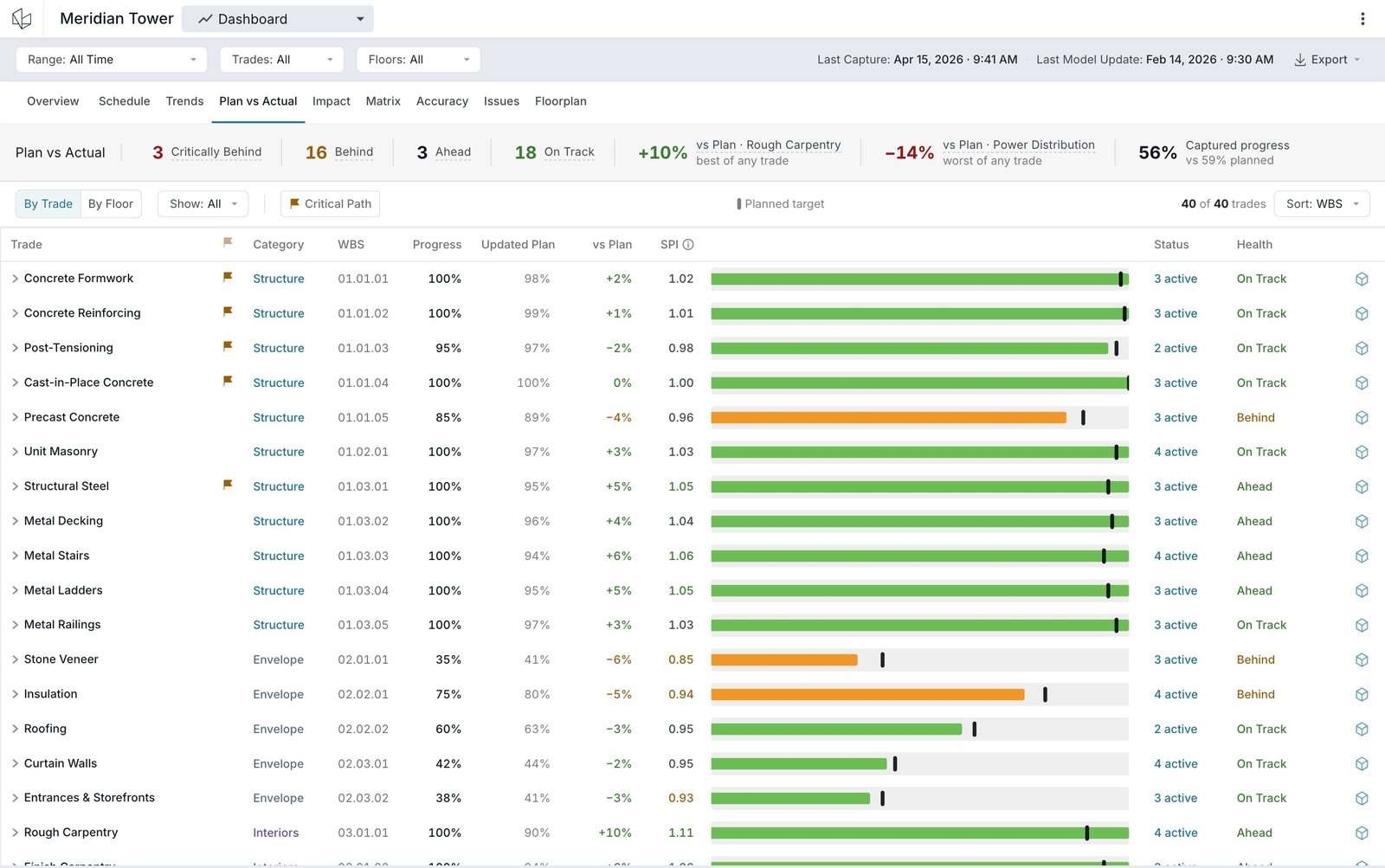
Plan vs Actual: per-trade Health, SPI, variance against updated plan.
Impact answers who's blocking whom downstream? A delayed trade feeds the trades whose dependencies gate on it; cascade chains surface directly with Critical Path trades flagged inline.

Impact: Focus card on Fire Suppression; Downstream sorts blocked trades by cascade severity.
Schedule answers how far from plan are we today, what has that gap looked like over time, and how far have we drifted from the original plan at kickoff? The S-curve carries all three lines (baseline at kickoff, updated plan, scanned actual), with a trade table sorted by health.
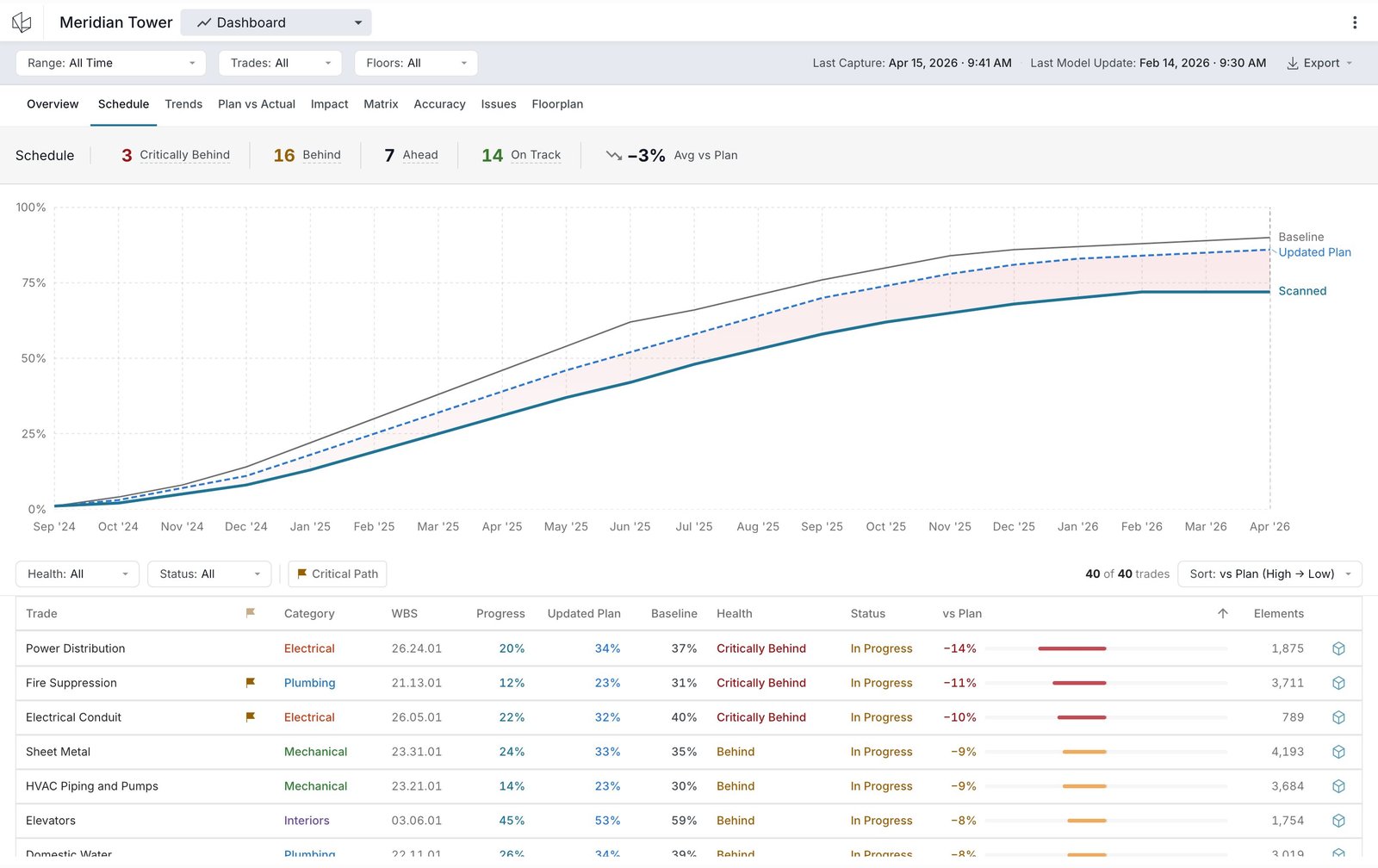

Schedule: S-curve headline; table grounds it in accountable trades.
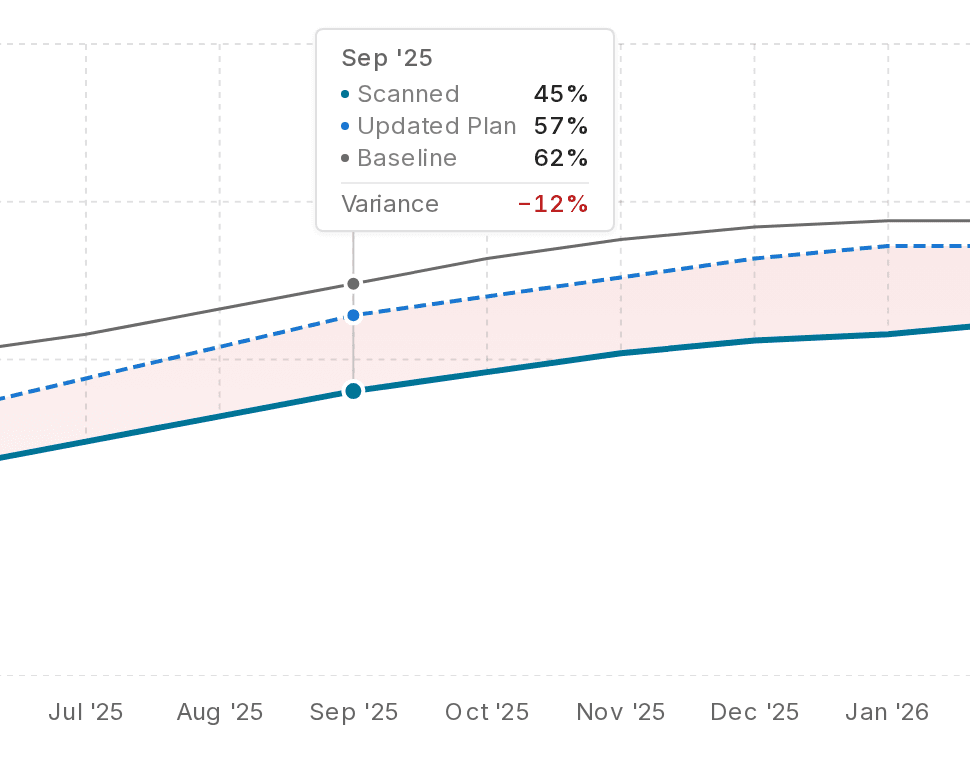
Schedule hover: baseline, updated plan, scanned actual, variance in one read.
Accuracy answers which trades are being installed inaccurately, and which need attention? Each construction element classifies as In Place, Deviated, Critical, or Clash, surfaced as a project-wide stacked bar plus per-trade table.
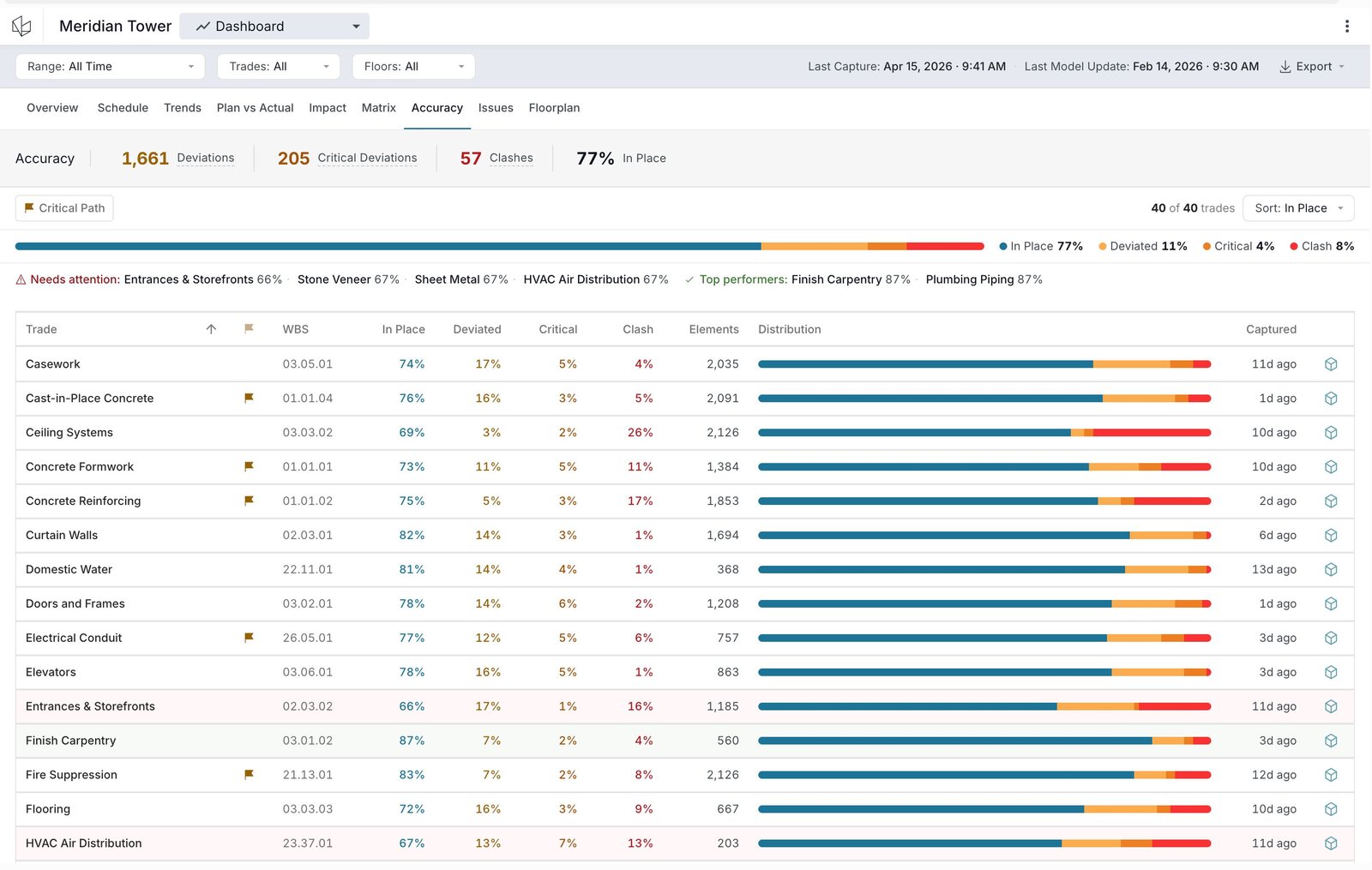

Accuracy: project-wide stacked bar plus per-trade breakdown.
Four more views complete the dashboard, each on the same pattern: one question, one chart shape, one click into the detail. Matrix: where on the trade-by-floor grid is the worst intersection? A heatmap. Floorplan: where in the building are the problems clustering? Progress overlaid on the architectural drawing. Trends: which trades are gaining or losing pace? Velocity by trade, week over week. Issues: which deviations and clashes need a closer look? A detail panel with As-Designed / As-Built / Clashing comparison and one-click links back to the 3D model.
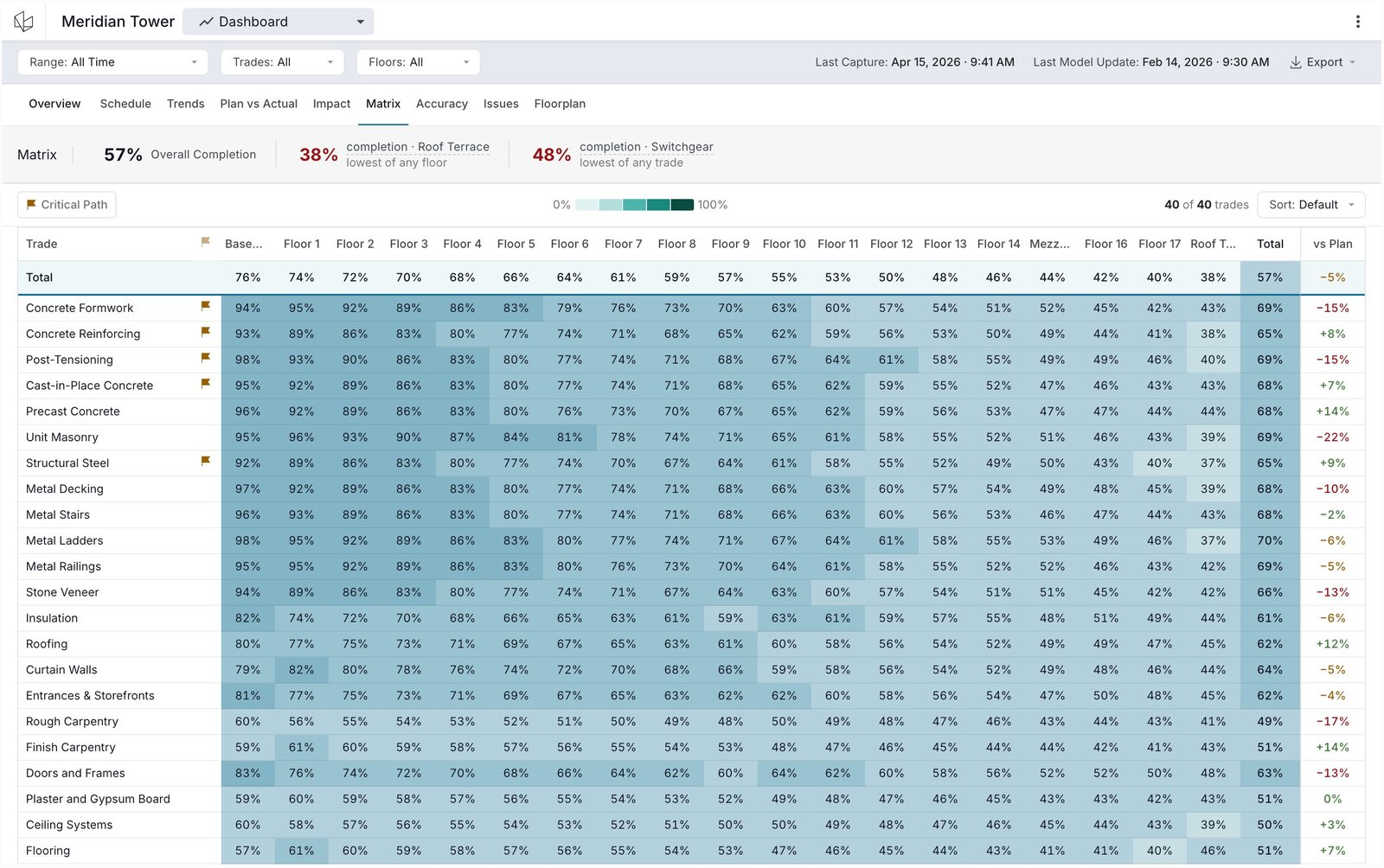

Matrix: trade-by-floor heatmap. The most-requested view from Project Owners.

Floorplan: progress overlaid on the architectural drawing, zone by zone.

Trends: which trades are accelerating, decelerating, or steady.
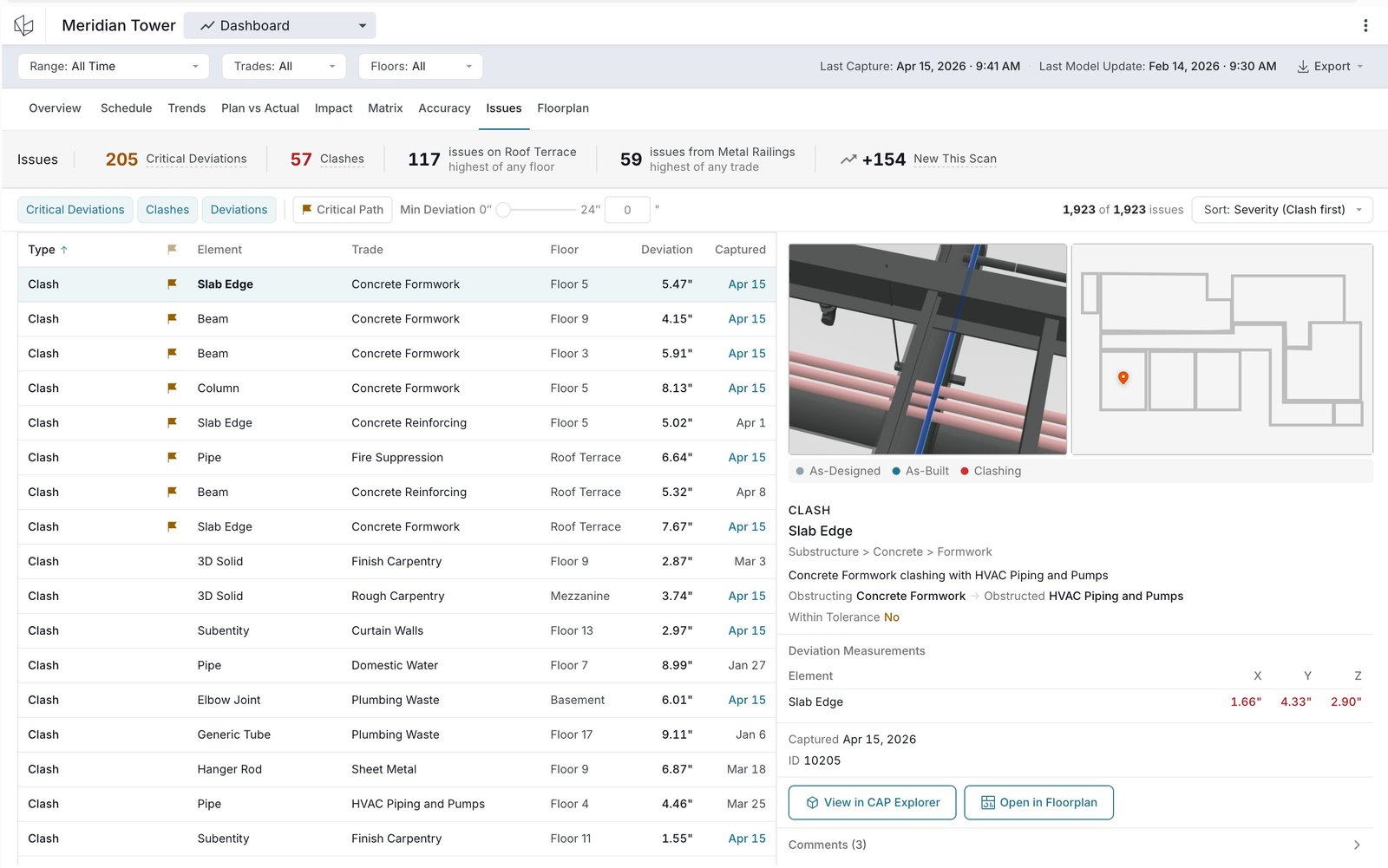
Issues: deviation and clash detail; each links back to the 3D model.
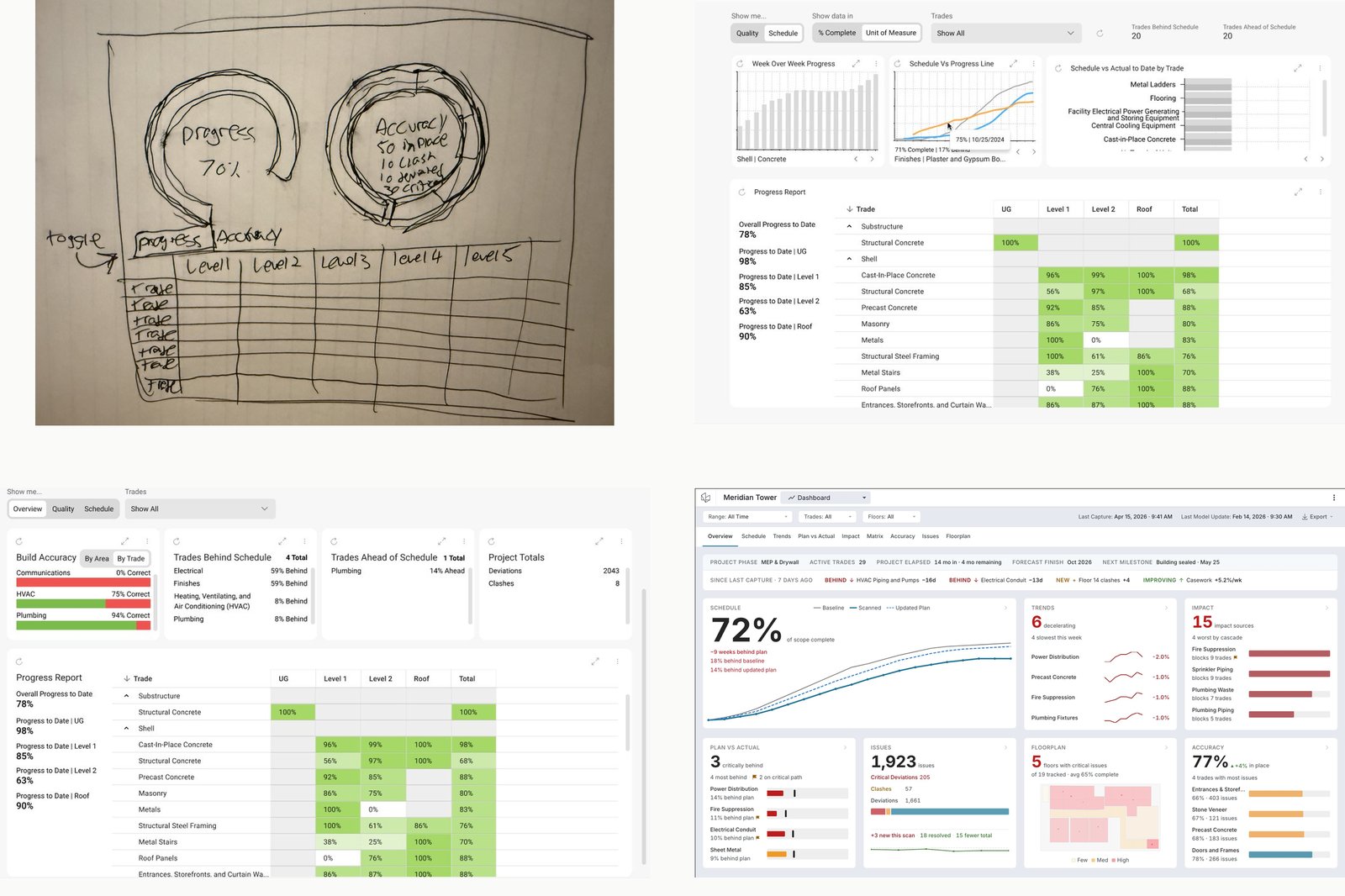
Overview composition iterations from sketch to final design.
Two charts off Power BI on the projects that adopted them. The rest of the 12-hour build, still by hand.
The Progress Matrix and Schedule vs Progress shipped first as the highest-volume views in the reporting backlog. Setup and updates for those two stopped being hand-built on the projects that adopted them, and the Customer Service time going into their Power BI production started to free up.
The rest of the reporting suite is still in Power BI, still hand-built by Customer Service. Standard reporting work is gone for what’s migrated, and still manual for the rest. Custom charts for key accounts will continue to be hand-built as scope.
The dashboard work builds into the Project Summary view, the existing landing surface. That surface logged 1,367 loads from about 94 Project Owners over 90 days, roughly once a week per owner. A leading indicator: the entry point already earns the traffic the dashboard is designed to serve. The full overview was still in early engineering when I left, scoped to serve a dual purpose as a landing surface in our current platform, and as the starting point for the Analysis tab in the unified Hexagon platform.
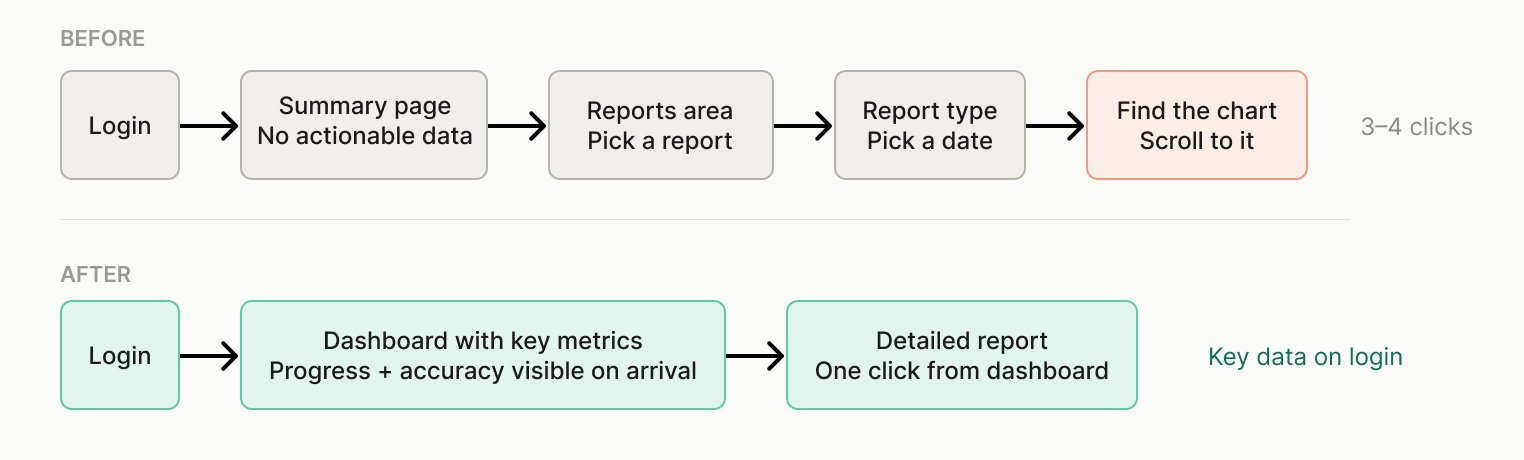
Before and after: click depth a Project Owner had to traverse to reach reporting data.
I’d have pushed harder to ship the navigation layer alongside the first native charts, even minimally. They were scoped as separate epics on different timelines, so the early charts shipped while Project Owners still navigated the old reporting flow to reach them. The pattern I’d take into the next overhaul: ship the surfaces users hit first.